What is happening?
We’re introducing new multi-factor authentication that makes logging into your PCU app more secure and user-friendly.
On your app, you will log in with your biometrics like face ID or pin and now you'll also select your MFA as your second layer of security.
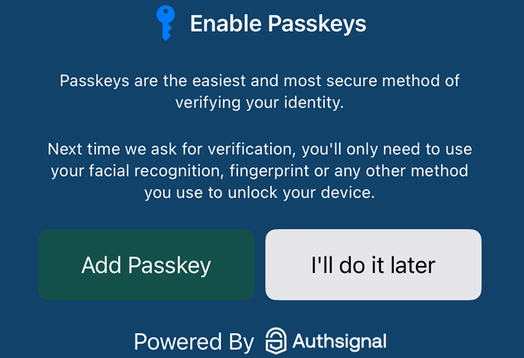
Passkeys is our recommended method, however there is the option to have a one-time text or email sent also.
What do you have to do?
You will be prompted to set up Multi-factor authentication by following the steps below.
MFA is replacing keep-safe questions and therefore is mandatory for every member to use.
Three ways to use MFA
🗝️ 1. Passkeys
Our new passkey option is the most recommended way to authenticate yourself. It’s a strong and user-friendly method to log into your mobile and internet banking.
Passkeys are an easy and safe way to sign in because it lives securely on your personal device.
NOTE: Once you set up a passkey, you won't need to set it up a second time
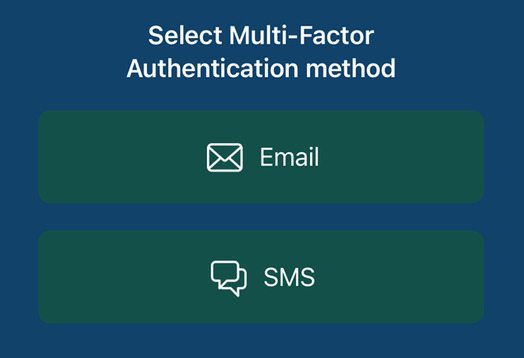
✉️ 2. Email
You'll receive a one-time password to your email address that's registered with us each time you need to authenticate yourself. This means we'll need your up-to-date email address.
📲 3. SMS
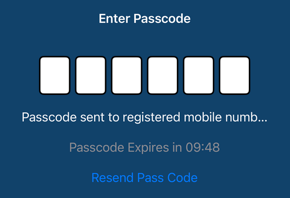
You'll be sent a one-time password to the mobile device (via SMS) registered with us. You'll need to do this each time you're prompted to authenticate, and we'll need to hold your current mobile phone number.
NOTE: Both SMS and Email forms of MFA are only one-time methods and will need to be re sent every time you log in
FAQ'S
- Why didn't I receive an MFA email code?
If you haven't received an email, please check your spam email folder as it may have gone there.
Or, the email we hold on file for you could be old or incorrect. Please contact us on 0800 429 000 to update it.
- Why didn't I receive an MFA text code?
The mobile number we hold on file for you could be either old or incorrect.
Please contact us on 0800 429 000 to update it.
- Why is a passkey the best option?
It's the safest and easiest way to authenticate yourself, making it more difficult for anyone but yourself to access your account.
- What if I don't want to use MFA?
You'll need to use multi-factor authentication to access your online banking as it's the only way to safeguard your credentials.
- What if I lose my phone or device?
You can log in using a backup method using either email or text.
- What if I don't get prompted to set up a passkey?
You can contact us on 0800 429 000 and we will find out why this is.
How to set up your Passkey
Step 1
First time set up
To initially set up your passkey, an authentication code will be sent to your email or mobile phone number held with us.
Step 2
Enter the SMS or email code that you received.
Step 3
Enable your passkey
Passkeys are the most secure and recommended authentication method, to create one, select 'Create passkey'.